Showing posts with label Part Modelling. Show all posts

Friday, July 15, 2011

Revolved Protrusion Overview-Solidedge

Overview:
 

A Revolved Protrusion is a feature that adds material to a solid. The profile that is created for a revolved protrusion is revolved about an axis. Let's review some of the options that are particular to a revolved protrusion.

Axis of Revolution

When creating a profile for a revolved protrusion, you must identify one of the lines as the Axis of Revolution. The Axis of Revolution icon is located on the Features and Relationships toolbar. This option converts a line into an axis of revolution and changes the font to a centerline.


Extents.

When creating a revolved protrusion, there are two extent options available, 360 Degrees and Finite Extent. The 360 Degrees option creates a full revolution. If this option is selected, no other input is required. The default option is called Finite Extent. This option defines the protrusion with an angle value from the profile. To define the angle, you have three options.


Option 1 is to drag the cursor to the approximate location and pick the location in the graphics window. The step distance can be changed to increase or decrease angle increment. It defaults to every 5 degrees.

  
Option 2 is to type in a value in the Angle text box and press ENTER on the keyboard. After the distance is entered, pick the location to determine the direction of the revolved protrusion.


Option 3 is to pick a keypoint. The keypoint option can be end point, mid point, arc center, or tangent point on the solid. The revolved protrusion is then linked to that keypoint and is modified when the keypoint moves.

Symmetrical/Non-Symmetrical.

With any revolved protrusion, you can use the Symmetrical or Non-Symmetrical Extent option for the Finite Extent. The Symmetrical Extent option would rotate the feature evenly on either side of the profile. The Non-Symmetrical Extent allows you to define the start and end angles relative to the profile.


Play the video for an overview of Revolved Protrusions. This file contains sound, so be sure to adjust your volume accordingly.

Thursday, July 14, 2011

Protrusions

Protrusions


    Path: Features | Protrusion…


Use this to ...
  • Adds material to a model by extending a profile.
  • The following video demonstrates how to create a protrusion from a constrained profile. Do not adjust your volume; there is no sound associated with this video.

Key Points..


  • Protrusions always add material to the solid.
  • Protrusions are usually the first feature in a part.
  • The ribbon bar guides you through the process of creating a protrusion. 


Prerequisites

  • · A thorough understanding of creating profiles in Solid Edge.


    Process: Create a Protrusion...


                                    Step 1

    Click Protrusion on the Features toolbar.

          
                                    Step 2

    Define the plane for the profile or select the objects from an existing sketch.

                                    Step3

    Complete the profile step by drawing and constraining a profile.

                        Step 4

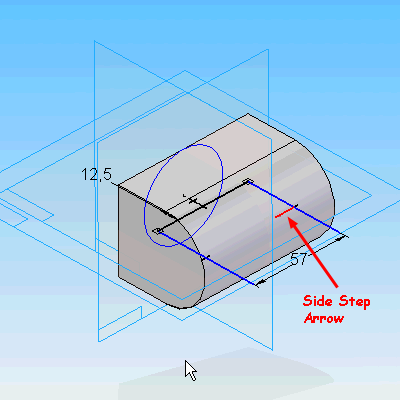
    For an open profile, a small red arrow appears to select the side to add material. Pick the Side Step direction to add material in the Graphics window.

                                    Step 5


    Pick one of the extent icons on the ribbon bar

                                    Step 6

    If required, activate the Non-Symmetric or Symmetric Extent option.

                                    Step 7

    Complete the extent options to define the size of the protrusion.

                                    Step 8

    Pick in the Graphics window to create the feature.

                                   Step 9

    If required, activate the Treatment step and apply a treatment to the protrusion.
     

                    Step 10


    Click Finish on the ribbon bar to complete the protrusion.

    Thursday, July 7, 2011

    Protrution Overview Day2-Solidedge

    Additional Protrusions.

    When additional protrusions are added, there are more options available on the extents step of the ribbon bar. In addition to From/To Extent and Finite Extent are Through All and Through Next. The Through All option creates a protrusion that extends across the entire part. When this option is activated, there is a small red arrow that displays. This is the direction of the feature and it can be set to up, down, or both sides of the profile. The Through Next option extends the protrusion until it collides the next face on the solid. You will need to set the direction of the protrusion just like the Through All option.


    Symmetrical/Non-Symmetrical.

    With any protrusion, you can use the Symmetrical or Non-Symmetrical option for most of the extent options.

    Treatment Features.

    Protrusion features have the capability of applying a treatment. There are two different treatment options, Drafts and Crowns. The Draft treatment applies an angle to any face that is perpendicular the profile plane. This option is great for applying tapers to plastic parts or cast features. The Crown treatment applies a radial treatment to all faces that are perpendicular to the profile plane. For cosmetic parts, this provides a softer look to the part and still allows the feature to be cast or molded.


    Wednesday, July 6, 2011

    Protrusion Overview.- Solidedge

    Protrusion Overview.


    Overview: Protrusions are features that add material to a solid. In the previous topics, we discussed the feature creation process. Now let's look at some of the options for protrusions.

    Protrusion as a Base Feature.

    When you are creating the base feature in the part with a protrusion, there are two extent options available. The default option is called Finite Extent. This option defines the extrusion with a distance value from the profile. To define the distance, you have three options.

    Option 1 is to drag the cursor to the approximate location and pick the location in the graphics window.

    Option 2 is to type in a value in the Distance text box and press ENTER on the keyboard. After the distance is entered, pick the location to determine the direction of the protrusion.

    Option 3 is to pick a key point. The key point option can be end point, mid-point, arc center, or tangent point on the solid. The protrusion is then linked to that key point, and is modified when the key point moves.

    The second extent option available is called From/To Extent. This option defines the length of the protrusion as the distance between the 'From' surface or plane, and the 'To' surface or plane. When creating the base feature, you will typically use the Finite Extent option

    Tomorrow we will see Additional Protrusions ,Symmetrical/Non-Symmetrical & Treatment Features the continuation of this topic.

    The video for overview of Protrusions will be posted on tomorrow.

    Please Give comments.

    Feature Creation Process day2-Solidedge

    In Continuation to yesterday's post.

    Define Plane
    The first step in creating a feature is to define the plane. This is the plane that the profile is created on and the zero location of the feature. One option that is available is called Select from Sketch. A Sketch feature is just a profile that is constrained. Use this option when a sketch feature exists in the model. If there are no sketches, this option is not available.

    Profile
    After the plane is defined, you are placed in profile mode. Here is where you define the outline for the profile. This profile can be an open or closed profile. If you are creating the first feature in the part, then the profile has to be a closed profile.


    Side Step
    If your profile is open the next step in the feature process is to define the side step. The side step is a direction arrow that originates from the profile. The arrow point to the side that material is to be created for the feature. If your profile is closed, this option is unavailable and is skipped.

    Extents
    When a feature is created, the feature starts at the profile, and can end on either side of the profile. By activating the Symmetric Extents icon, the feature is now created equally on both sides of the profile. For example, if a distance of 30 millimeters is specified for the overall distance, the feature would extend 15 millimeters on each side of the profile. The Non-Symmetric Extents icon creates the feature with a different start distance and end distance. For example, you could start the feature at 3 millimeters and end it at 20 millimeters from the profile.

    The Extents Step defines the distance for the feature. For features like Protrusions and Cutouts, the extent options define a linear direction. For features like Revolved Protrusions and Revolved Cutouts, the extent options define an angular orientation. These options will be reviewed in the upcoming topics
    .

    Treatment Options
    Some features have the capability of creating treatments. In Solid Edge, treatments come in the form of Drafts and Crowns. The Draft Treatment is a handy option for creating plastic parts or castings. It saves you from having to apply a secondary Draft feature to the model. The Crown Treatment is similar to the Draft Treatment except for the treatment is rounded, where draft is flat.


    Feature Creation Process Video

    Tuesday, July 5, 2011

    Feature Creation Process-Solidedge

    Feature Creation Process
    In this unit:
    - Exposes you to the feature creation process.
    - Familiarizes you with the different types of features and terminology.
    - Shows you how to create the different types of features.


    Overview:

    This topic is intended to provide you with an example of a typical process for creating features. While these steps will not always be the same for every feature, they are a good, general guide for most features. Solid Edge guides you through this process by using the ribbon bar. The ribbon bar automatically advances to the next step after the current step is successfully completed.

    Play the video for an overview of the feature creation process. This file contains sound, so be sure to adjust your volume accordingly.

    Sunday, July 3, 2011

    Introduction For Creating Feature - Solid edge

    Hi Viewers
    We have seen how to create reference plane and profile in sketch modelling which ends here.
    Now let us move on to the next level (Part Modelling).

    In order to create a feature the above said reference plane and profiles are the major blocks.

    Now we will put these blocks together. Most features utilize reference planes and profiles as part of the feature creation process.


    Overview of the Creating Features


    Play the video for an overview of the Creating Features unit. This file contains sound, so be sure to adjust your volume accordingly.